GateBud
The document library
The Document library is where every arrival document lives: site rules, induction sheets, hazard notices. A document lives here once, and every site that shows it updates the moment you publish. GateBud™ keeps every version, so a record always points at exactly what the visitor saw. Not sure which hazards to write up? A free hazard register template is a good place to start.
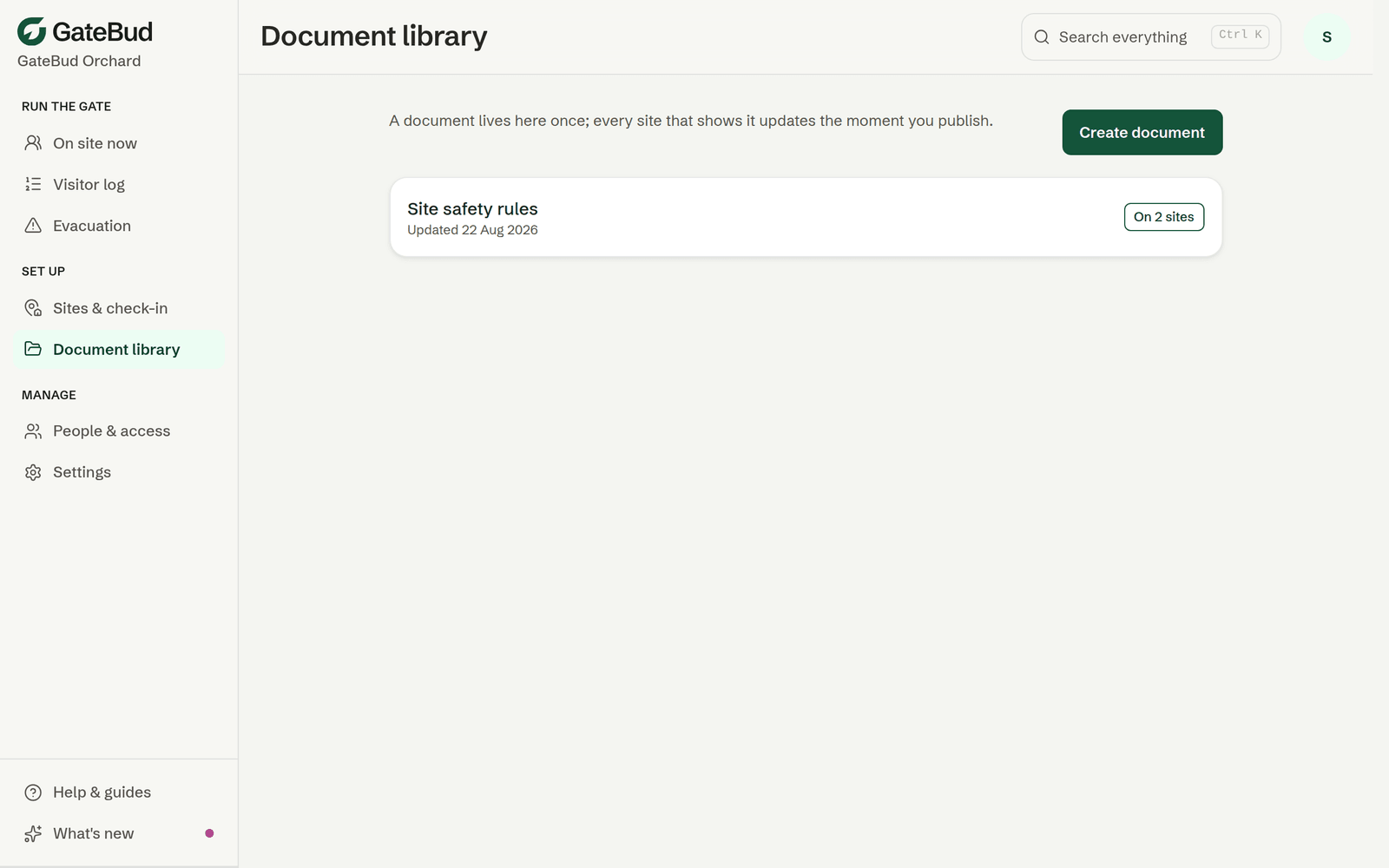
Each card shows when the document was last updated and how many sites it is on. "Not on any site yet" means visitors cannot see it until you add it from a site's page.
Creating a document
Go to the Document library and tap Create document. Give it a title visitors will recognise, then pick one of two ways to add the content:
- Upload a file. A PDF or a picture, up to 10 MB. See "How long a PDF should be" below for how page count affects what visitors see.
- Write it. Build it from headings, paragraphs and bullet lists. This is the most reliable option at the gate, it loads fast on rural data and never needs a second tap.
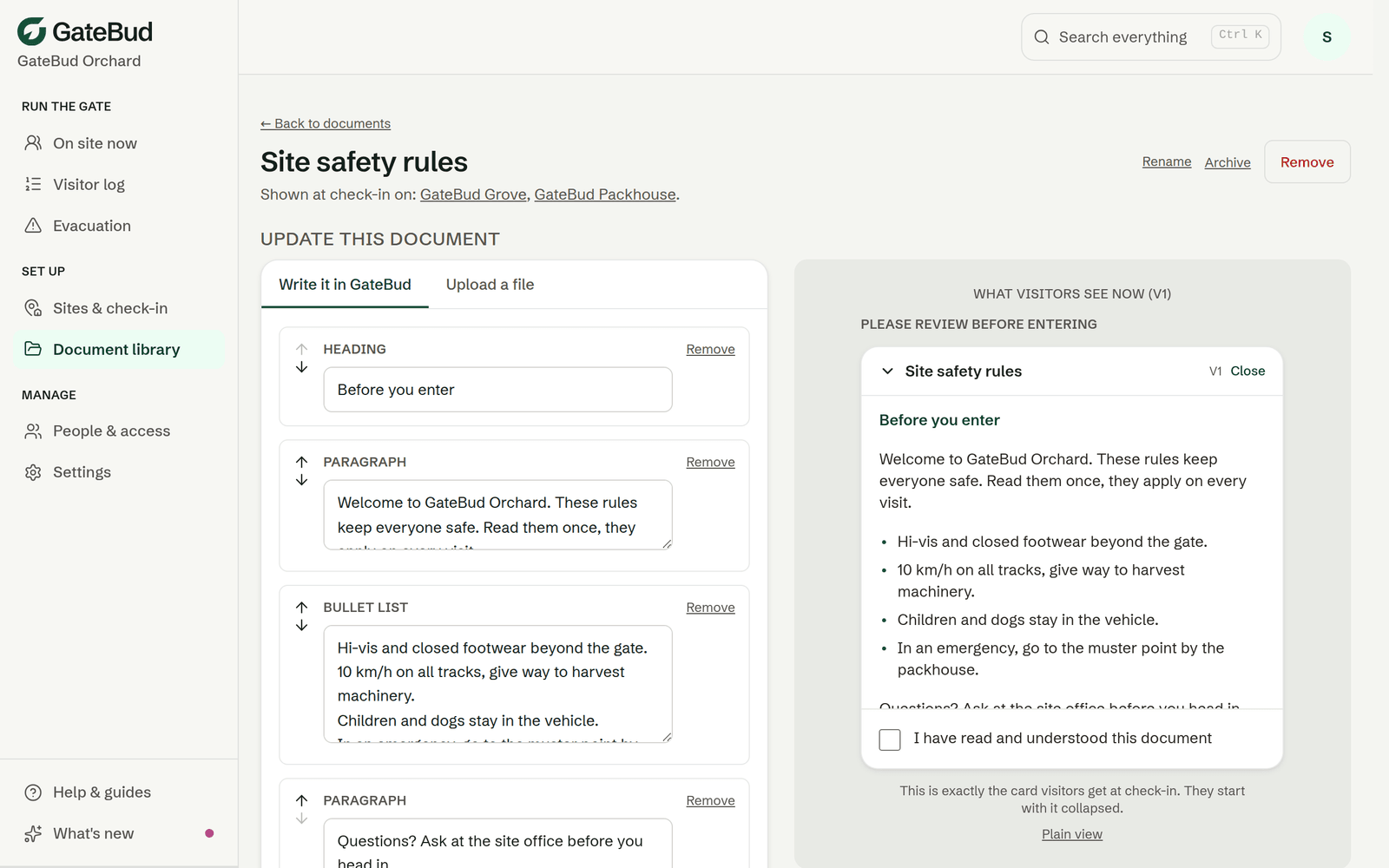
The phone-shaped preview on the right is not a mock-up. It is exactly the card visitors get at check-in, so what you approve is what the gate shows.
How long a PDF should be
A PDF of up to 40 pages is converted to pages when you publish it, so visitors read it right on the check-in page, scrolling down through numbered pages to a clear end. On a weak signal the first page shows quickly and the rest follow. If the signal drops, the pages still to come show Waiting for signal and carry on by themselves when it's back; a page that won't load can be tapped to try again. While you publish a long PDF, the Publish button counts the pages as they upload.
If the PDF is longer than 40 pages, or can't be converted (some protected PDFs can't), visitors get a short preview and an Open the full document button, which needs signal at the gate. GateBud tells you before you publish. To avoid that, split it into PDFs of 40 pages or fewer, or write the key points as a GateBud document. The file-size limit is 10 MB.
A long PDF you published before GateBud could convert it still shows the short preview, and its page says so. Upload the same PDF again as a new version to switch it over. Returning visitors are asked to read a new version again, so pick a quiet time.
While creating, tick the sites to show it at, and choose whether visitors must confirm they have read it. You can fine-tune required or optional per site afterwards, from each site's page.
Updating a document, and versions
Open the document and make your change, then publish. Publishing creates a new version, and:
- Every site showing the document switches to the new version immediately.
- Returning visitors are asked to read it again, so nobody is riding on an acknowledgement of an old version. The change note you add, for example "Spray zone moved to Block D", is shown to them.
- Every past acknowledgement keeps pointing at the exact version that visitor saw. Customer staff cannot overwrite or delete a published version.
If nothing actually changed, GateBud refuses to publish an identical version, so an accidental double-click never forces everyone to re-read.
Checking which sites have a document
Open a document and look under its title. It says how many sites show the document, for example "Shown at check-in on 2 of 5 sites, 3 not on". Tap Check sites to see every one.
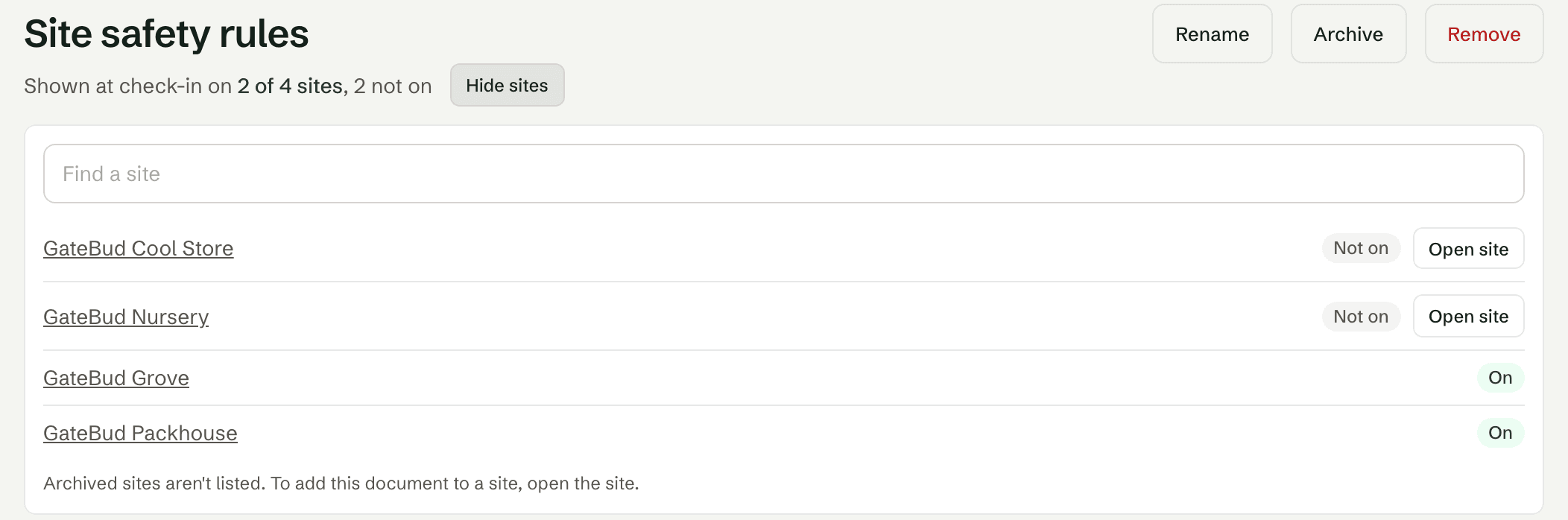
- Sites that don't show the document come first, marked Not on, so a gap is the first thing you see. Tap Open site to go to that site and add it.
- Sites that do show it are marked On.
- Type in Find a site to jump to one by name when you have a lot of sites.
- Not on isn't a warning. A document can be meant for only some of your sites.
- Archived sites aren't listed.
If GateBud can't load your full list of sites, the panel says so and only counts the sites that have the document. It never claims a site is missing the document when it doesn't know.
You add a document to a site from that site's own page, not from the document. See sites, questions and posters.
Site maps
A site map is a special per-site document. You add it from the site's own page, in the Site map slot, not from the library, and it never appears in the library list. See sites, questions and posters. Everything else works the same: it is versioned, visitors acknowledge it, and the evacuation roll call links to it.
Archive, remove, restore
- Archive hides a document from visitors and site pickers, but your team can still open it. Use it for a document you are done with but want to keep visible internally. One tap restores it.
- Remove is stronger: the document disappears for your whole team and comes off every site it was on, and those site assignments are gone for good. Visitors' past acknowledgements are compliance evidence, so those are never touched. A removed document can be restored later from the bottom of the library list, but you add it back to sites yourself.
There is no way to delete a document outright, on purpose. Records that say "they read version 2" must always be able to show what version 2 said.
Who acknowledged what
Every check-in record lists the documents shown, with the exact version, in the Visitor log. If a document could not load at the gate, the record honestly says it was not shown rather than claiming an acknowledgement that did not happen.