GateBud
Check-ins and check-outs
A check-in is one visit: who arrived, when, what they answered and what they read. It starts when someone scans your poster and ends when they check out. This is the visitor's side of GateBud™.
Visitors never need an account and never install anything.
Checking in
- The visitor points their phone camera at the QR poster and taps the link.
- A short form opens: their name, their company (optional), your documents and the questions you set for that site.
- They read each document and tick "I have read and understood this document" for anything you marked as required. If the site's settings allow check-in when a document cannot load, the record says it was not shown instead. A little progress bar shows how many required items are left.
- They tap Check in. Once the entry reaches GateBud, they appear on your Dashboard. Notification emails are a separate heads-up and may arrive later.
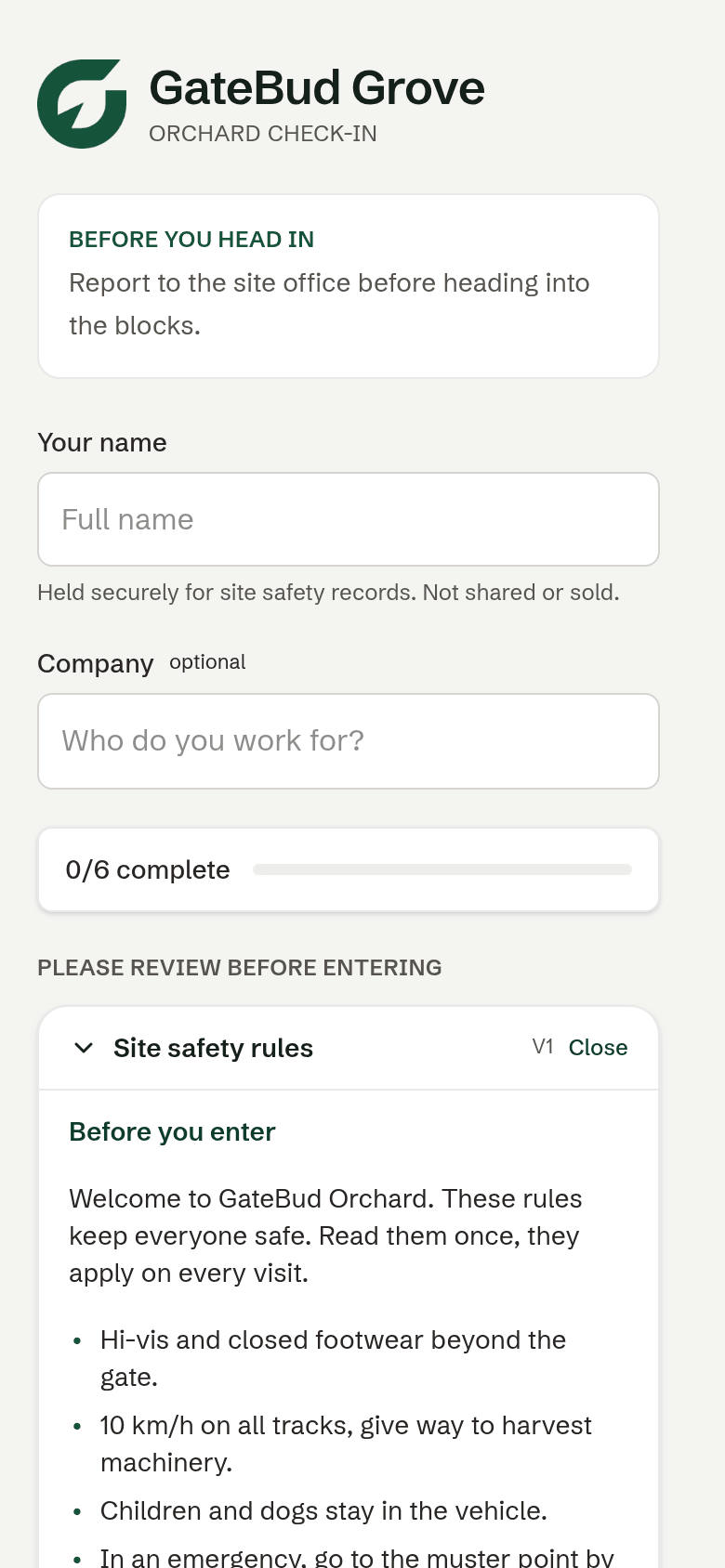
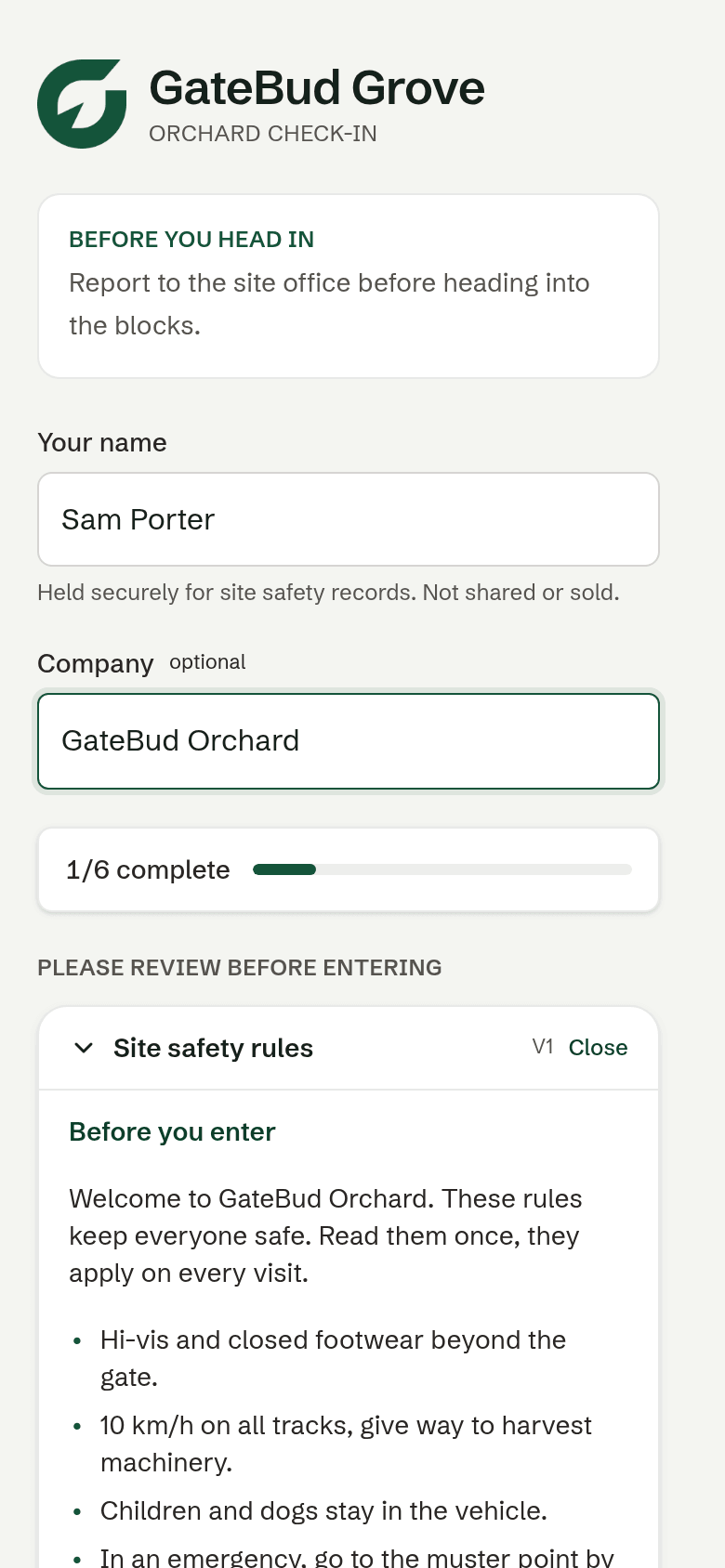
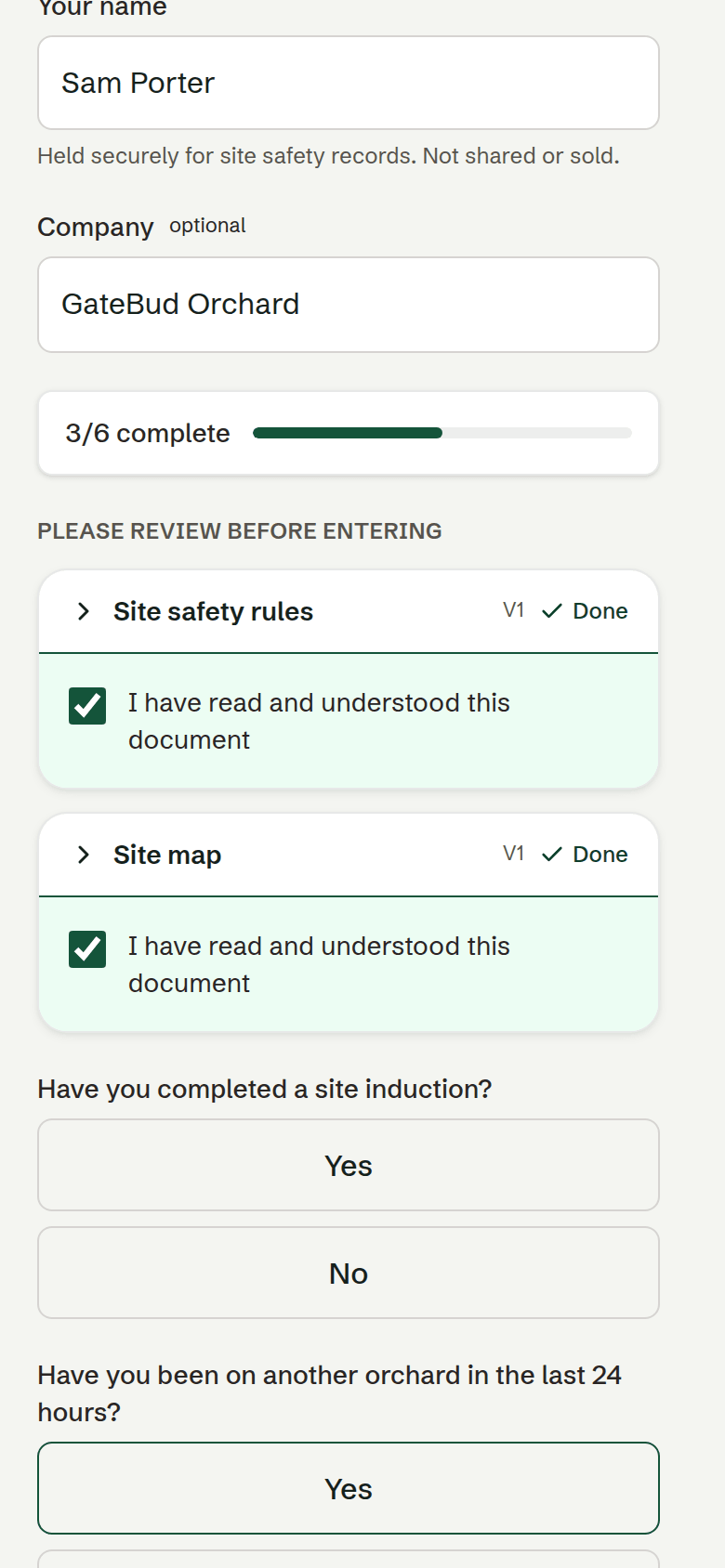
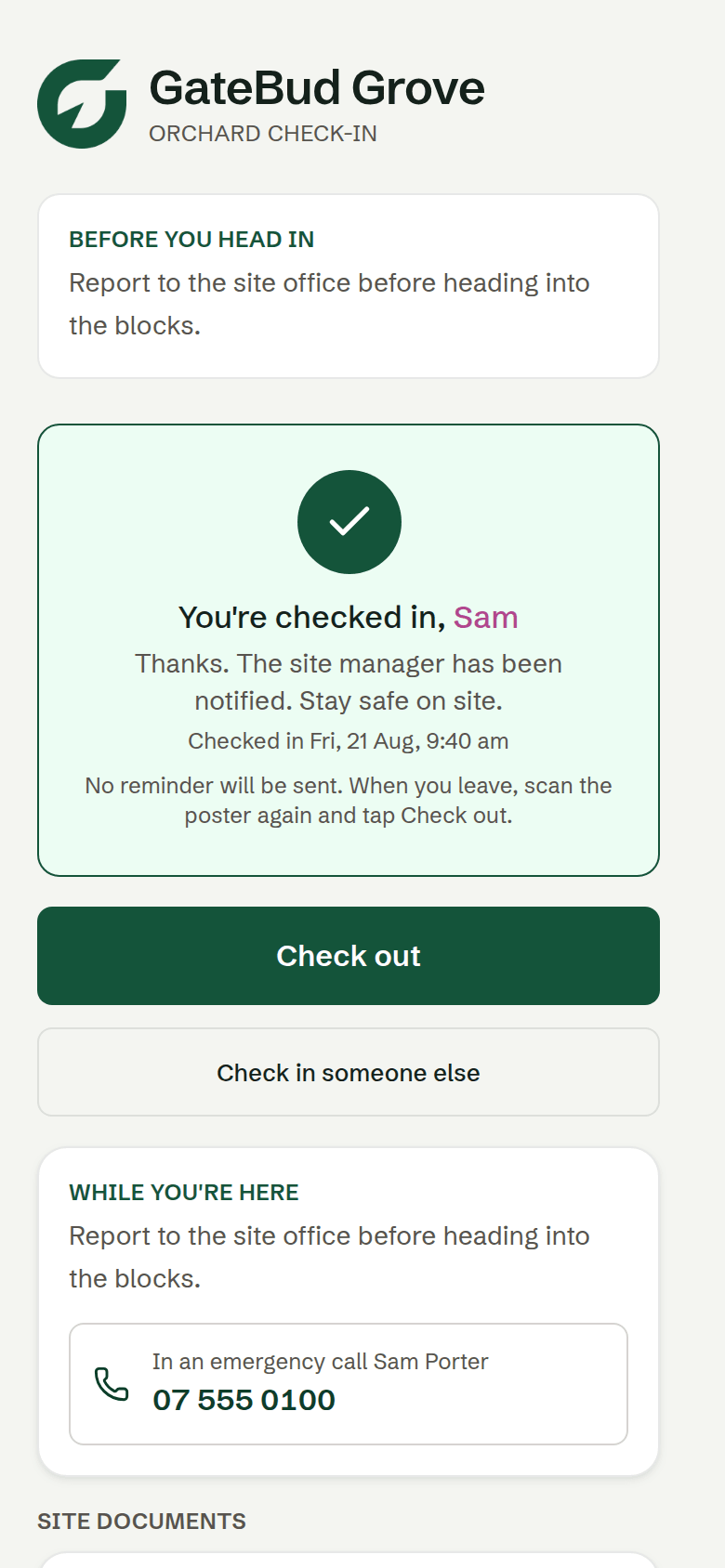
When they are through, the confirmation screen shows their check-in time, when they are due out if they gave an expected time, your site instructions, and your emergency contact as a tap-to-call line.
Their phone remembers their name and company, so the second visit is faster than the first. It greets them with "Welcome back", and one tap clears it if it is someone else's phone.
If someone's camera will not scan, they can type the short web address printed under the QR code into their browser instead. Same form.
Checking out
The same page they used to check in lets them check out when they leave. Scan the poster again, and the phone remembers the visit and offers a one-tap Check out button.
Two people with the same name
Now and then two people on site share a name. When that happens, GateBud never guesses which one is which.
- When someone checks in and their name and company match a visit still open at that site, GateBud asks them: "Looks like you might still be checked in from 7:42 am. Was that you?" Yes closes their earlier visit. No leaves both open and suggests adding a surname. Either way they are already checked in.
- When someone types a name to check out and more than one person on site has that name, GateBud checks nobody out. Both people stay on the Evacuation list under Checked out by name, please confirm, so a warden still checks for them. Check out whoever has left from the Dashboard.
People forget constantly, so you have three backstops:
- Check anyone out yourself from the Dashboard. You can add a short note, for example "left at smoko, forgot to check out". The note stays on the record.
- Automatic check-out, set per site, which closes off anyone still showing as on site. See sites, questions and posters.
- Overdue flagging. Anyone who looks stuck on the list is flagged on the Dashboard so you can see who to chase. See the Dashboard.
An automatic check-out is marked as automatic on the record. It records when the rule ran, not a confirmed departure. Set the rule long enough for genuine visits and check overdue people are no longer working before checking them out yourself.
A check-out needs signal. If a visitor taps Check out with no coverage, GateBud says so and asks them to try again in coverage, or to ask you to check them out. It never silently pretends a check-out happened.
No phone signal at the gate?
The page needs enough signal to load first. If reception drops during check-in, GateBud saves the entry on the visitor's phone and the screen turns amber: "Check-in saved on this device". It retries while that page stays open. Once the entry reaches GateBud, the screen turns green and the record keeps the original check-in time.
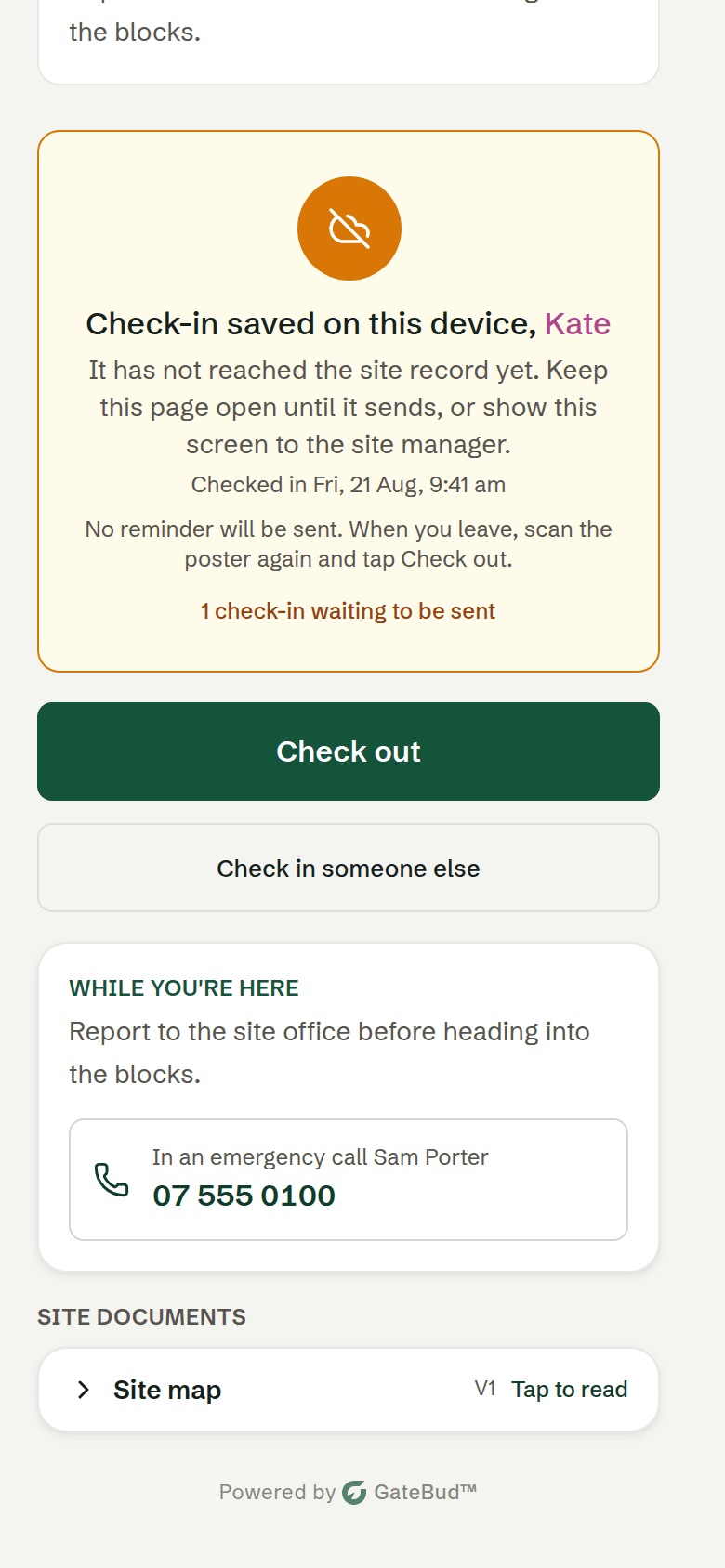
Ask the visitor to keep that page open until it turns green. A closed tab cannot send. While it is amber, the visit is missing from the central Dashboard and evacuation list, so use your site's agreed fallback record and give the visitor the relevant site information. Recovery depends on the browser retaining the entry. See troubleshooting for the recovery steps and seven-day limit.
One thing to know: while offline, the visitor's phone cannot download site documents it has not seen before. Each site has a setting for what should happen in that case, and the record always says honestly whether a document was actually shown. See sites, questions and posters.
What visitors see about their privacy
Under the check-in button, the form tells visitors their details are shared with your site's manager for health and safety records, with a plain-English expansion of what is collected, who can see it, and how long it is kept. The full policy is at gatebud.com/privacy.
How long you keep their names is your choice, set once for the whole account. See the Visitor log, exports and privacy.
The notification emails
If a site has recipients set up under Notify on check-in, GateBud emails those who have accepted alerts when someone checks in, with a link to the live Dashboard. A site can notify up to ten people. Several arrivals close together are bundled into one alert for each recipient. Once a check-in reaches GateBud, it is recorded independently of email delivery; the email is just a heads-up.