GateBud
Evacuation and the roll call
The Evacuation page lists people currently recorded as checked in, for reading out at the assembly point. It supports your site's emergency plan. People who have not checked in, whose entry is waiting offline, or whose visit was automatically closed may be missing. Include any paper or other fallback sign-in list.
GateBud™ uses large names and whole-row tap targets. It asks the device to keep the screen awake where supported.
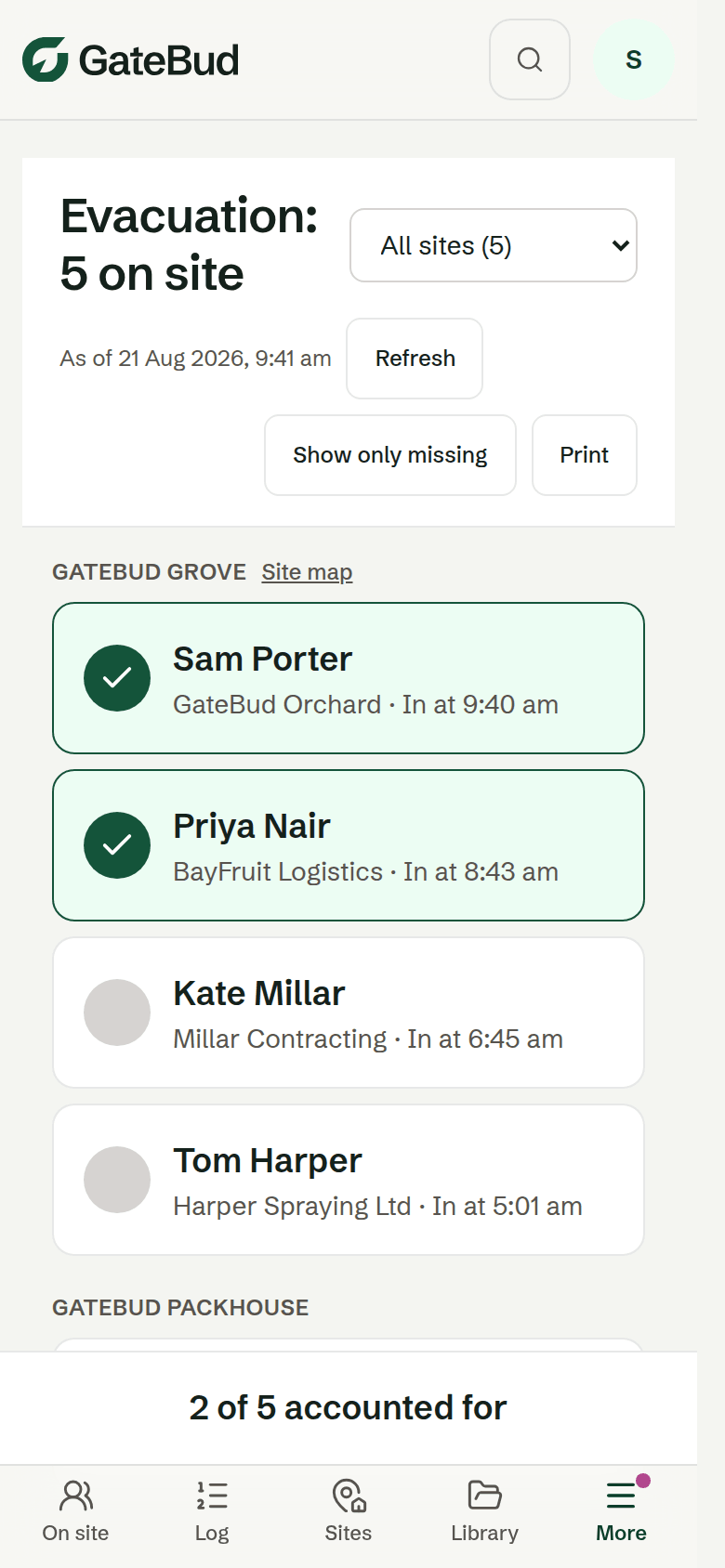
Running a roll call
- Open Evacuation from the menu, or the Evacuation button on the Dashboard.
- Read the names out. Tap a whole row to mark that person safe, it turns green with a tick.
- The tally at the bottom keeps count, "3 of 5 accounted for", until everyone is marked.
A roll-call record starts with your first tick and covers the people in your current site view. It finishes when everyone from that starting list who is still checked in is accounted for, or when you tap Finish roll call. Opening the page alone does not start a record.
Useful in the moment:
- Show only missing hides everyone already ticked, so the list shrinks to who you are still looking for.
- Site map, next to a site's name, opens that site's map for muster points and access.
- Filter by site if you run several and only one is evacuating.
- Print gives you a paper copy of exactly what is on screen.
- Start over clears every tick when a new evacuation or drill begins.
- Refresh picks up anyone who checked in since you opened the page.
The live ticks belong to that device. They are not shared live between wardens' phones and do not check anyone out or change the visit record. GateBud separately saves the roll-call start, ticks and unticks, who made them, and the finish, for later review under Past roll calls. Agree who is running each roll call; separate phones do not show a shared live tally.
If the browser retains the saved ticks, reopening Evacuation on the same phone restores them. If you come back more than 30 minutes after your last tick, GateBud asks whether to carry on or start fresh. Use Start over for a new evacuation or drill.
Any signed-in team member can open the roll call for all sites in their organisation, including with a View only or No access role. This emergency view is broader than normal site permissions. Check that each warden can sign in before an emergency.
Make it work before you need it
- Need a plan to go with the roll call? There is a free emergency and evacuation plan template, with a roll-call sheet you can print for the assembly point.
- Everyone who might run a roll call should have a GateBud login, and should open the evacuation list once on a calm day, so the first time is not during a real event.
- Remind visitors and staff to actually check out when they leave. A stale list makes a roll call slower. The automatic check-out setting on each site helps with this, see sites, questions and posters.
- Upload a site map on each site's page, so the roll call's map link has something to open.
- Agree a fallback for a phone, connection or service outage. Make sure wardens can get the current sign-in information and site plan without relying on GateBud being reachable at that moment.
After the event
Open Past roll calls from Evacuation and select the event. The saved record shows its sites, who ran it, start and finish times, who was accounted for and who was still missing. Open the record and use Print for your incident file.
If the connection drops, roll-call writes wait on that device and retry while GateBud is open and can reach the server. Browser storage must retain them. Reconnect on the same device and check the record under Past roll calls before relying on it as complete. A tick visible on the phone is not proof it has reached the saved record.
Keep missing-person follow-up and other incident notes using your site's emergency or incident procedure. The saved roll call does not replace that process.