GateBud
Help · Quick start guide
Quick start guide
The GateBud™ sign on your gate lets everyone who comes on site sign in and out with their phone. Scan it on arrival, scan it again when you leave. No app or account needed to check in.
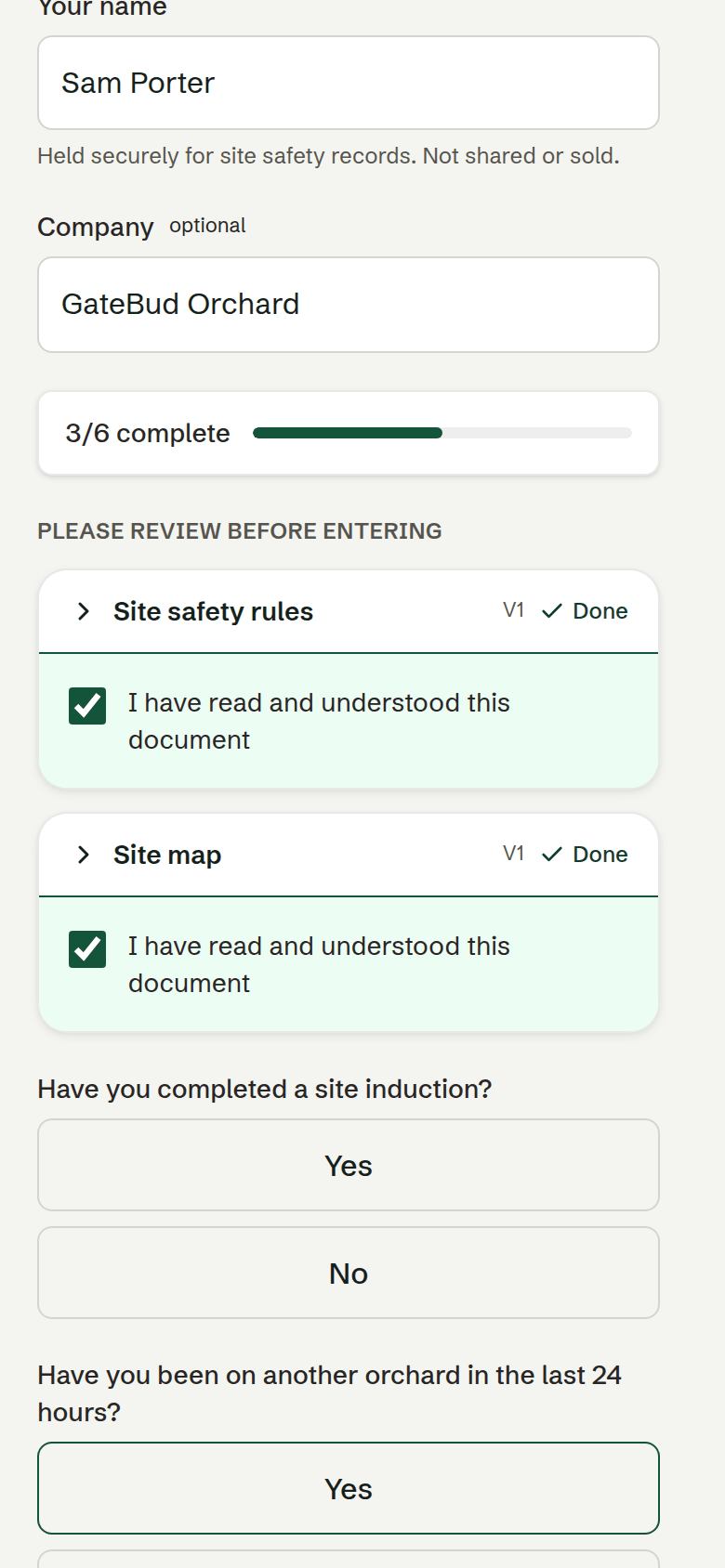
Arriving. Scan the QR code with your phone camera and open the link. Enter your name and company, if applicable. Read any site documents, complete the required acknowledgements and questions, then tap Check in.
Leaving. Scan the same sign and tap Check out. Check-out needs signal. If it fails, try again in coverage or ask your team's GateBud admin for help.
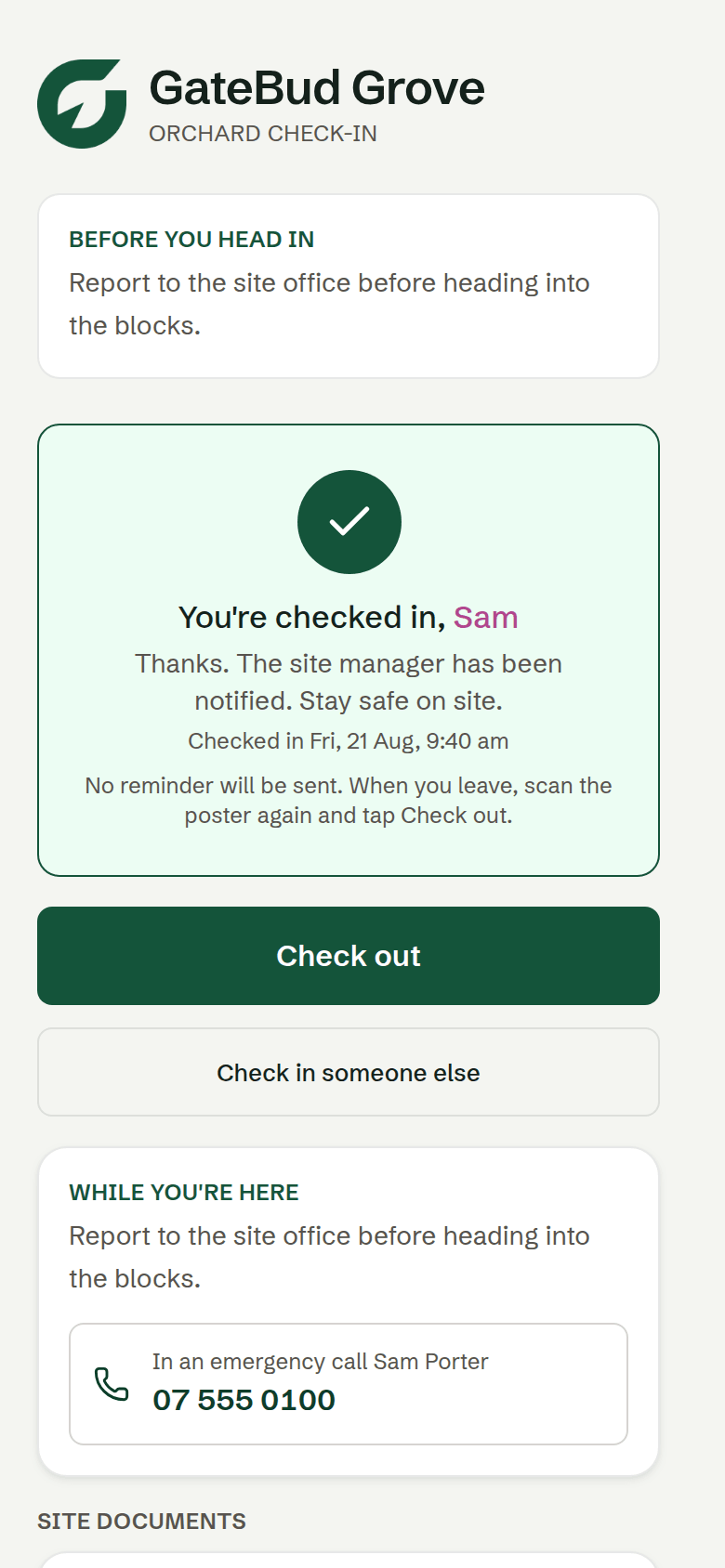
Your team can see who is checked in and look up past visits. Keep the list accurate by making sure everyone checks in and out.
Your part
- Make sure everyone who comes on site knows to scan in and out, every time.
- Check each sign opens the correct site. Keep it clean, readable and where people stop.
- If anything goes wrong, tell a GateBud admin on your team. They look after GateBud for your sites.
Quick fixes
- Camera will not scan: type the short address under the code into the phone's browser.
- No signal: if the screen says "Check-in saved on this device", keep the page open until it confirms the check-in has sent. If the page will not open, ask your site contact for help.
- No usable phone? Ask your site contact for help.
Prefer paper? Download the one-page quick start guide.
Not working? Email support@gatebud.com.